


Configuring a Cisco network with routers, switches, VLANs, and DHCP can be challenging yet rewarding for network administrators. In this project, we set up multiple VLANs on a router. These VLANs segment different types of network traffic. This approach ensures efficient communication across devices. We used trunking to allow multiple VLANs to communicate between switches.
We also configured DHCP to automatically assign IP addresses to devices. With VLAN 99 dedicated to remote management, network administrators can securely manage network devices via SSH, enhancing security and accessibility. Learning how to configure Cisco routers and switches is essential for this process. This guide will walk you through how to configure the Cisco router and switch, making the task more approachable.
Step 1: Configuring the Router
- VLAN Subinterface Configuration
- DHCP Configuration for VLANs
- Default VLAN Setup for Network Management
Step 2: Configuring Main Switch (Switch 1)
- VLAN Creation
- Trunk Port Configuration
- IP Configuration for Management on VLAN 99
Step 3: Configuring Additional Switches
- VLAN Configuration on Switches 2, 3, 4, and 5
- Trunking Between Main and Additional Switches
- Access Port Configuration for PCs and Device Connections
Step 4: Set Up SSH for Remote
- SSH Configuration on Router
- SSH Configuration on Switches
- User Account Setup and Secure Access
Step 5: Testing and Verification
- DHCP IP Allocation Verification
- VLAN Connectivity Testing
- SSH Access and Remote Management Testing
Here’s a step-by-step guide for configuring this Cisco network topology in Packet Tracer. It includes VLAN creation, IP configuration, trunking, DHCP settings, and SSH setup to meet the project plan requirements. You will learn the best practices on configuring Cisco router and switch throughout these steps.
Step 1: Set Up the Router
- Configure VLAN Subinterfaces on the router for inter-VLAN routing:
   Router>enable
   Router# configure terminals
   Router(config)# hostname SkyFada-R
   SkyFada-R(config)# interface gigabitEthernet0/0
   SkyFada-R(config-if)# ip address 172.10.0.1 255.255.254.0
   SkyFada-R(config-if)# no shutdown

   SkyFada-R(config)# interface gigabitEthernet0/0.10
   SkyFada-R(config-subif)# encapsulation dot1Q 10
   SkyFada-R(config-subif)# ip address 10.10.1.1 255.255.255.0
   SkyFada-R(config-subif)#no shutdown

   SkyFada-R(config)# interface gigabitEthernet0/0.20
   SkyFada-R(config-subif)# encapsulation dot1Q 20
   SkyFada-R(config-subif)# ip address 10.20.1.1 255.255.255.0
   SkyFada-R(config-subif)#no shutdown

   SkyFada-R(config)# interface gigabitEthernet0/0.30
   SkyFada-R(config-subif)# encapsulation dot1Q 30
   SkyFada-R(config-subif)# ip address 10.30.1.1 255.255.255.0
   SkyFada-R(config-subif)#no shutdown

   SkyFada-R(config)# interface gigabitEthernet0/0.99
   SkyFada-R(config-subif)# encapsulation dot1Q 99
   SkyFada-R(config-subif)# ip address 10.99.9.1 255.255.255.0
   SkyFada-R(config-subif)#no shutdown
SkyFada-R#copy running-config startup-config (This Command to save all configuration)- Enable DHCP on the router for each VLAN:
   SkyFada-R(config)# ip dhcp pool Default
   SkyFada-R(dhcp-config)# network 172.10.0.0 255.255.254.0
   SkyFada-R(dhcp-config)# default-router 172.10.0.1
   SkyFada-R(config)# dns-server 8.8.8.8

   SkyFada-R(config)# ip dhcp pool VLAN10
   SkyFada-R(dhcp-config)# network 10.10.1.0 255.255.255.0
   SkyFada-R(dhcp-config)# default-router 10.10.1.1

   SkyFada-R(config)# ip dhcp pool VLAN20
   SkyFada-R(dhcp-config)# network 10.20.1.0 255.255.255.0
   SkyFada-R(dhcp-config)# default-router 10.20.1.1

   SkyFada-R(config)# ip dhcp pool VLAN30
   SkyFada-R(dhcp-config)# network 10.30.1.0 255.255.255.0
   SkyFada-R(dhcp-config)# default-router 10.30.1.1
Step 2: Configure Main Switch (Switch 1)
- Create VLANs on the main switch:
   Switch1#
   Switch1#configure terminal
   Switch1(config)#hostname SkyFada-Sw1
   SkyFada-Sw1(config)# vlan 10
   SkyFada-Sw1(config-vlan)# name VLAN10
   SkyFada-Sw1(config)# vlan 20
   SkyFada-Sw1(config-vlan)# name VLAN20
   SkyFada-Sw1(config)# vlan 30
   SkyFada-Sw1(config-vlan)# name VLAN30
   SkyFada-Sw1(config)# vlan 99
SkyFada-Sw1(config-vlan)# name VLAN99- Set up trunk ports connecting to the router and other switches:
   SkyFada-Sw1(config)# interface gigabitEthernet0/1
   SkyFada-Sw1(config-if)# switchport mode trunk
   SkyFada-Sw1(config-if)# switchport trunk allowed vlan 1,10,20,30,99
   SkyFada-Sw1(config-if)# no shutdown
   SkyFada-Sw1(config-if)# do wr

   SkyFada-Sw1(config)# interface GigabitEthernet0/2
   SkyFada-Sw1(config-if)# switchport mode trunk
   SkyFada-Sw1(config-if)# switchport trunk allowed vlan 1,99
   SkyFada-Sw1(config-if)# no shutdown
   SkyFada-Sw1(config-if)# do wr

   SkyFada-Sw1(config)# interface fastEthernet0/2
   SkyFada-Sw1(config-if)# switchport mode trunk
   SkyFada-Sw1(config-if)# switchport trunk allowed vlan 1,10,30,99
   SkyFada-Sw1(config-if)# no shutdown
   SkyFada-Sw1(config-if)# do wr

   SkyFada-Sw1(config)# interface fastEthernet0/3
   SkyFada-Sw1(config-if)# switchport mode trunk
   SkyFada-Sw1(config-if)# switchport trunk allowed vlan 1,10,20,30,99
   SkyFada-Sw1(config-if)# no shutdown
   SkyFada-Sw1(config-if)# do wr

   SkyFada-Sw1(config)# interface fastEthernet0/4
   SkyFada-Sw1(config-if)# switchport mode trunk
   SkyFada-Sw1(config-if)# switchport trunk allowed vlan 1,10,20,30,99
   SkyFada-Sw1(config-if)# no shutdown
SkyFada-Sw1(config-if)# do wr- Configure an IP for remote management to (Switch1) (optional for Vlan 99):
   SkyFada-Sw1(config)# interface vlan 99
   SkyFada-Sw1(config-if)# ip address 10.99.9.2 255.255.255.0
   SkyFada-Sw1(config-if)# ip default-gateway 10.99.9.1
   SkyFada-Sw1(config-if)# no shutdown
   SkyFada-Sw1(config-if)# do wr
Step 3: Configure Other Switches


Example for Switch 2:
- Create VLANs on Switch 2:
   Switch2#
   Switch2#configure terminal
   Switch2(config)#hostname SkyFada-Sw2
   SkyFada-Sw2(config)# vlan 1
   SkyFada-Sw2(config-vlan)# name VLAN1
   SkyFada-Sw2(config)# vlan 10
   SkyFada-Sw2(config-vlan)# name VLAN10
   SkyFada-Sw2(config)# vlan 30
   SkyFada-Sw2(config-vlan)# name VLAN30
- Configure trunk port for connection to Switch 1:
   SkyFada-Sw2(config)# interface gigabitEthernet0/1
   SkyFada-Sw2(config-if)# switchport mode trunk
   SkyFada-Sw2(config-if)# switchport trunk allowed vlan 1,10,30,99
   SkyFada-Sw2(config-if)# no shutdown
SkyFada-Sw2(config-if)# do wr- Assign Access Ports for PCs:
   SkyFada-Sw2(config)# interface fastEthernet0/1
   SkyFada-Sw2(config-if)# switchport mode access
   SkyFada-Sw2(config-if)# switchport access vlan 10
   SkyFada-Sw2(config-if)# no shutdown
   SkyFada-Sw2(config-if)# do wr

   SkyFada-Sw2(config)# interface fastEthernet0/2
   SkyFada-Sw2(config-if)# switchport mode access
   SkyFada-Sw2(config-if)# switchport access vlan 10
   SkyFada-Sw2(config-if)# no shutdown
   SkyFada-Sw2(config-if)# do wr

   SkyFada-Sw2(config)# interface fastEthernet0/3
   SkyFada-Sw2(config-if)# switchport mode access
   SkyFada-Sw2(config-if)# switchport access vlan 10
   SkyFada-Sw2(config-if)# no shutdown
   SkyFada-Sw2(config-if)# do wr

   SkyFada-Sw2(config)# interface fastEthernet0/4
   SkyFada-Sw2(config-if)# switchport mode access
   SkyFada-Sw2(config-if)# switchport access vlan 30
   SkyFada-Sw2(config-if)# no shutdown
   SkyFada-Sw2(config-if)# do wr

   SkyFada-Sw2(config)# interface fastEthernet0/5
   SkyFada-Sw2(config-if)# switchport mode access
   SkyFada-Sw2(config-if)# switchport access vlan 1
   SkyFada-Sw2(config-if)# no shutdown
   SkyFada-Sw2(config-if)# do wr
Could you repeat similar steps for Switch 3, Switch 4, and Switch 5 with the appropriate VLANs and access ports? This procedure is crucial for understanding how to configure Cisco routers and switches effectively in a complex network setting.
Step 4: Configure SSH on Switches and Router
- Enable SSH on the router and main switch for remote access via VLAN 99.
- Set hostname, domain name, and generate crypto keys.
- Configure SSH user and enable vty lines for SSH access. Example configuration:
   SkyFada-R#
   SkyFada-R(config)#username admin secret cisco
   SkyFada-R(config)#enable secret cisco

   SkyFada-R(config)# line vty 0 4
   SkyFada-R(config-line)# login local
   SkyFada-R(config-line)# transport input ssh
   SkyFada-R(config)#ip ssh version 2
   SkyFada-R(config)# ip domain-name skyfada.com
   SkyFada-R(config)# crypto key generate rsa
Note: bit rate: 512, 1024,...

   SkyFada-R(config)# line con 0
   SkyFada-R(config-line)# password cisco
   SkyFada-R(config-line)# login local
   SkyFada-R(config)# services password-encryption
   SkyFada-R(config)# do wr
Step 5: Test Remote to Router for Connectivity
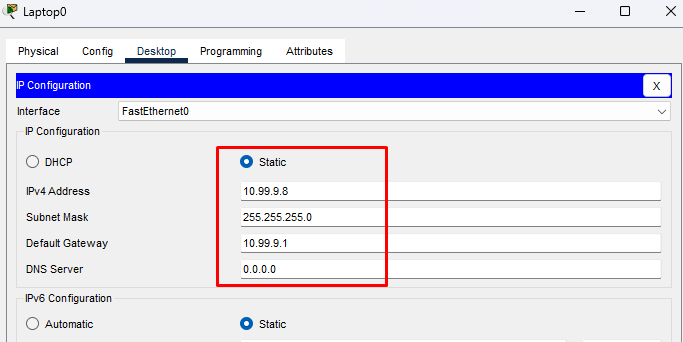
- Ensure PCs are set to receive IP addresses via DHCP.
- Verify IP Configuration on each VLAN by using
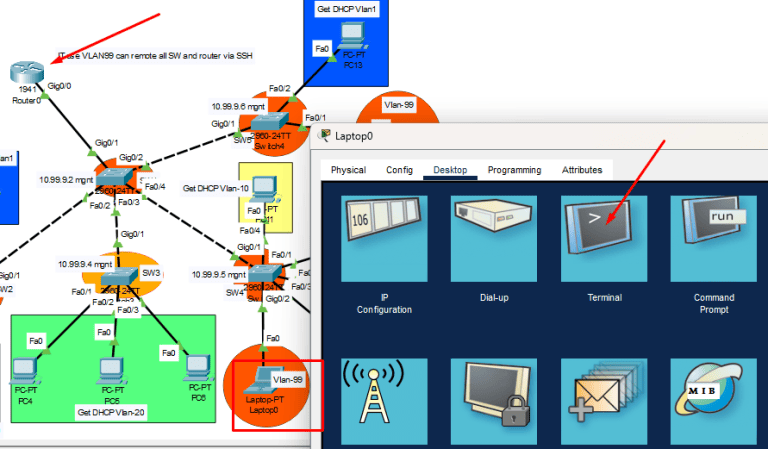
pingcommands to ensure connectivity across VLANs and access to the router. - Test SSH access to confirm that SSH can reach devices using VLAN 99.
Remote from Laptop to router with the command: ssh -l admin 10.99.9.1
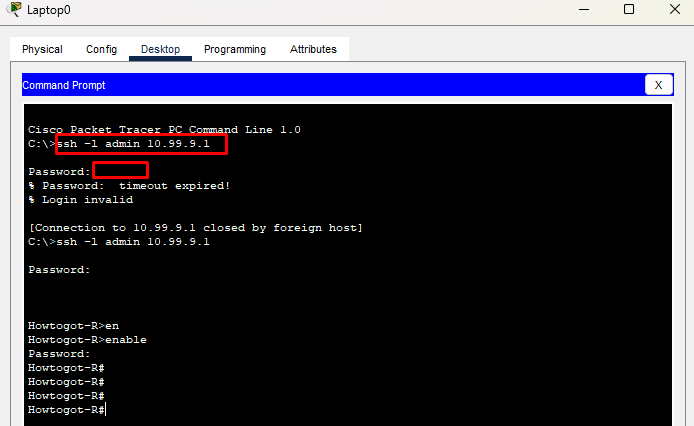
This setup should enable inter-VLAN routing, and remote management via SSH on VLAN 99. Feel free to let me know if you need additional configurations or troubleshooting tips!
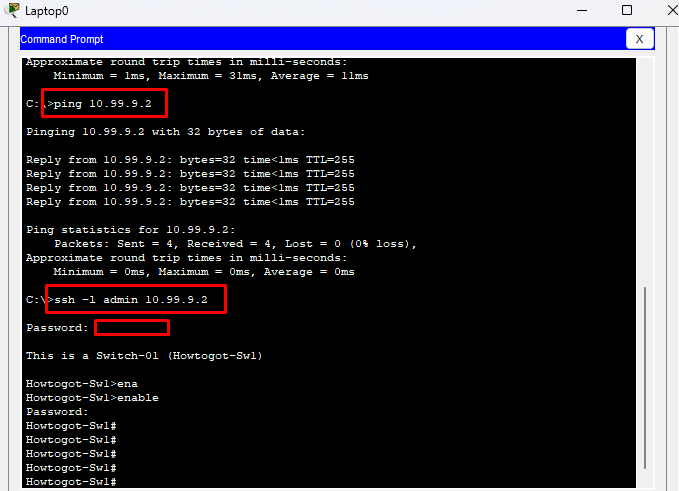
Step 6: Test Remote to Switch-1 for Connectivity
Remote from Laptop to Switch 1 with remote IP address as command: ssh -l admin 10.99.9.2
Suggested Learning for Students
For students interested in mastering Cisco networking, diving into topics like VLANs, trunking, DHCP configuration, and SSH setup is fundamental. Start by practicing on simulators like Cisco Packet Tracer or GNS3, allowing you to experiment safely. Additionally, consider exploring:
- CCNA (Cisco Certified Network Associate) courses, which cover essential networking skills.
- Switching and Routing Protocols like OSPF and EIGRP to improve network performance.
- Network Security basics, including secure remote access methods and ACLs (Access Control Lists).
Building a solid understanding of these Cisco concepts is essential. This includes learning how to configure a Cisco router and switch. It will prepare you well for real-world network management and troubleshooting. Happy learning!
